
Guide
The pet portal
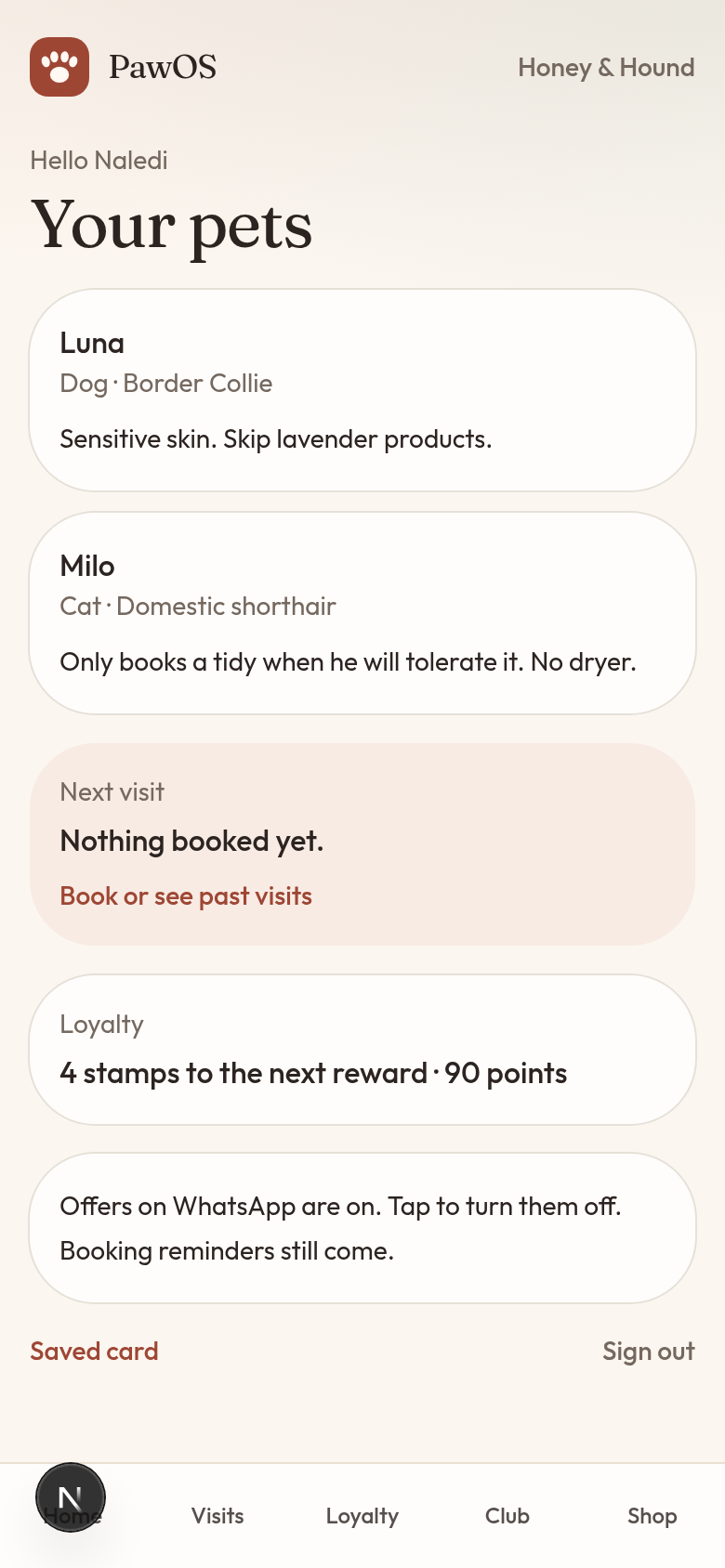
Clients get their own page for pets, visits, loyalty, a grooming club and food repeats. There is no password.
Step 1
Add the cellphone
When you save a client at the counter, PawOS sends a WhatsApp welcome with the portal link. The first online booking does the same. They are on the portal as soon as that number is on your book.
Step 2
Print the poster
Settings, Print QR poster. Put it on the counter. A client scans it, enters the mobile you saved, and types the 6-digit code.
Step 3
What they can do
See their pets, upcoming and past visits, and book again. The loyalty card shows stamps, points, and how far they are from the next reward. They can ask to use a reward on the next groom. They can join, pause or cancel a grooming club and book an included groom. They can put food on repeat every 2, 4 or 8 weeks, then confirm, skip or change each order.
Step 4
Offers stay optional
The portal has a tick for marketing consent. Booking reminders still go out without it. They can turn offers off later.
Step 5
Cards, clubs and the shop on your side
Client cards use your own Yoco or PayFast choice in Settings. Until those keys are connected, the charge is practice only. Add clubs under Clubs and products under Shop. Fulfil an order when the bag is ready. Connect WhatsApp in Settings is the Meta signup practice screen. It does not call Meta until the keys are added.