
Guide
Salon setup
Settings is where the salon name, the booking link, services and the team live. Only the owner can change these.
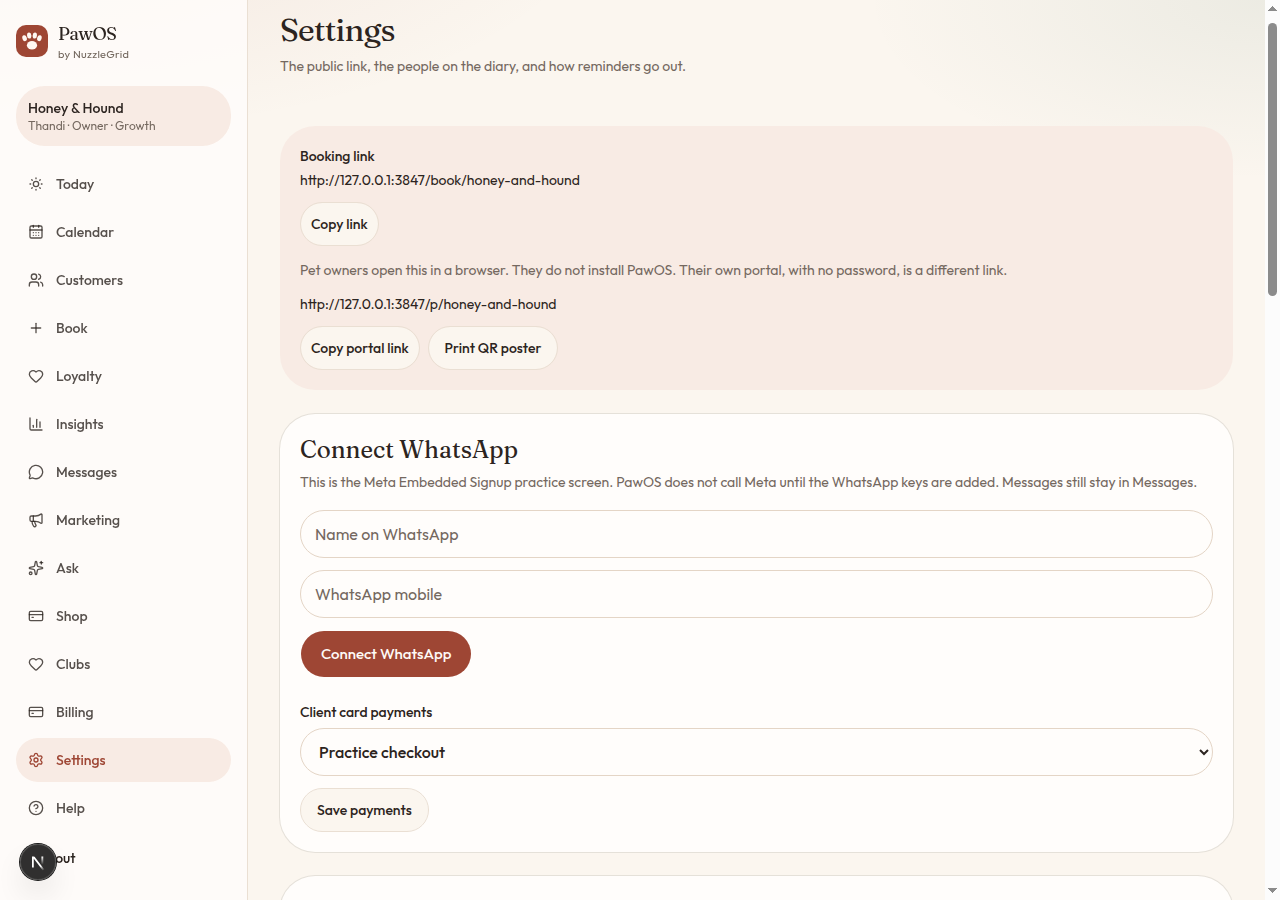
Step 1
Open Settings
From Today, open Settings in the list on the left. On a phone, open More, then Settings.
Step 2
Save the salon details
Check the name, phone, email, street, city and province. Add your VAT number if you are registered. It is 10 digits. Tap Save salon.
Step 3
Choose how reminders go out
Reminder channel is WhatsApp, SMS or email. WhatsApp is the usual choice. Booking reminders use this channel.
Step 4
Use your existing WhatsApp number
Settings, WhatsApp. Connect my existing WhatsApp Business app number keeps the number on the phone and links it to PawOS. The app on the phone needs a recent version, and the number must already be active. Messages you send from the phone show under Messages, and PawOS pulls in contacts and recent history when you connect. Those contacts are not added to the client book. Use a new number if this SIM has never been on the WhatsApp Business app. Meta charges for template messages, which covers reminders and marketing. A reply within 24 hours of the client's own message is free, and it does not spend PawOS credits. Marketing still costs 1 credit per person. Reminders do not. Disconnect WhatsApp drops the link and leaves the old messages in place. Until the Meta keys are on the server, Honey & Hound uses a sandbox: nothing is sent to Meta, and the status says Sandbox.
Step 5
Online bookings and deposits
Leave Accept online bookings ticked if clients may book themselves. Tick Require the service deposit if the public page must take the deposit for that service.
Step 6
Services
Each service has a name, minutes, a price in rands and an optional deposit. Prices include VAT. Pause a service when you are not offering it. Add service saves a new one.
Step 7
Add your branding
Settings, Branding. Every plan, including Solo, can upload a logo. Solo keeps the PawOS colours and shows Upgrade to use your brand colours. Starter at R399 unlocks your colours. PawOS refuses a pair that is hard to read and tells you the contrast ratio. Growth at R999 adds an address such as book.salon.co.za and removes the Powered by PawOS line. Enterprise is full white-label: the salon name replaces PawOS on the booking page, the pet portal, messages, VAT invoices and the phone icon. Point a CNAME for your address at PawOS. Until that name is live, the PawOS booking link still works.